
You log into your dashboard, click “Update,” and expect a faster, safer website. Instead, you visit your homepage and gasp – your WordPress layout is messed up after the update. The header is crooked, the fonts look weird, your sidebar is sitting way down at the bottom of the page, and your beautifully designed site looks like a jigsaw puzzle put together in the dark.
Take a deep breath! This is incredibly common and usually a quick fix. Before you lose your mind, use this simple step-by-step checklist to troubleshoot and fix your broken layout fast.
If you don’t have time to troubleshoot code or handle backups, you can always use a fast Emergency WordPress Help service to get it sorted safely.
1. Clear All Caches (The Most Common Fix)
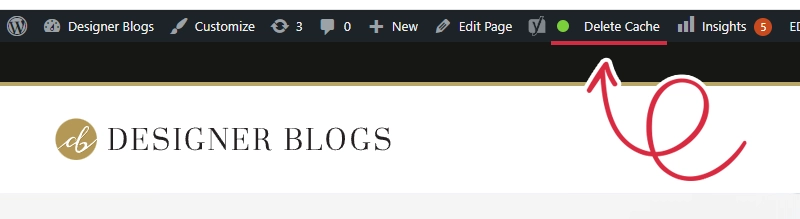
90% of the time, a messy layout is just a “memory” issue. Your website’s system is trying to load an old version of your design that is clashing with the brand-new update. Before trying anything complicated, force your site to refresh at every level:
2. Check for WordPress Plugin Conflicts
It is incredibly common for a WordPress site to break after a plugin update because a newly updated tool might suddenly stop getting along with your design theme. If clearing your cache didn’t work, we need to find out which plugin is causing the drama.
Follow this simple process:
- List the Likely Suspects: Think about your page builders (Elementor, Divi) or any tools that were updated right before the layout broke.
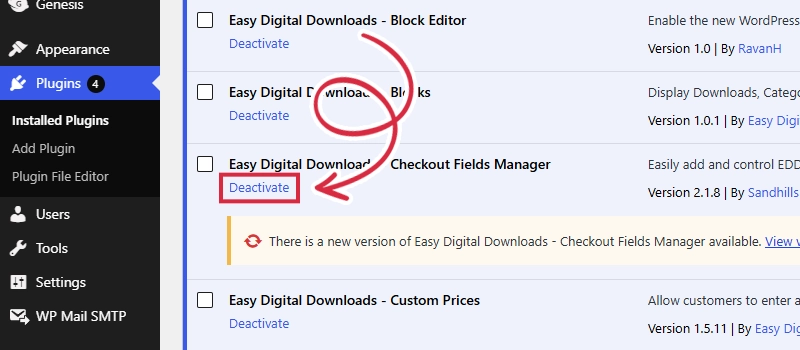
- Turn Them Off One by One: Go to your dashboard and click Plugins > Installed Plugins. Click “Deactivate” on just one plugin.
- Check Your Site: Refresh your homepage in a separate private window.
- Find the Culprit: If your layout suddenly snaps back to normal, you found the broken plugin! Keep it turned off for now, and look for an alternative tool or wait for the creator to release a fix.
3. Sync Your Theme and Page Builder Updates
If you updated the main WordPress system but left your design theme or page builder on an older version, they might no longer speak the same language. A WordPress theme broken after an update usually just means your tools are out of sync.
Make sure everything on your dashboard is updated together:
4. Switch to a Default Theme to Isolate the Issue
If you’ve cleared your caches and checked your plugins but your WordPress layout is still messed up after the update, we need to test your main theme. Temporarily changing your theme will tell us instantly if your theme’s code is broken.
Here is how to safely run this quick test:
- Go to Appearance > Themes in your WordPress dashboard.
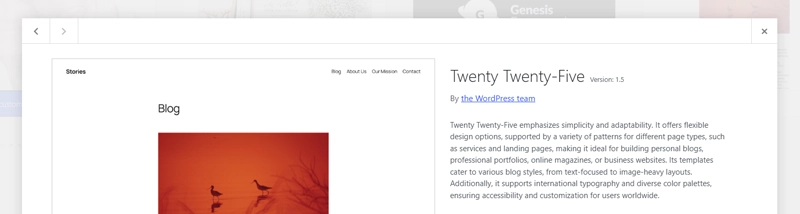
- Find a standard WordPress theme (like Twenty-Twenty Five) and click Activate.
- Refresh your website’s homepage.
If the layout looks normal: The issue is definitely a bug inside your specific theme. You’ll need to reach out to the theme creator or an expert developer to fix it.
If it’s still completely broken: The issue is a bit deeper, likely inside your website’s main settings or server database.
5. Restore a Backup
If your site is actively losing customers, sales, or bookings because of the broken design and you need a fast fix right now, simply restore the backup you took right before you clicked update. This will immediately reset your site back to safety and buy you time to figure out the issue later.
Still Stuck? Let Us Take the Stress Off Your Plate
Trying to dig through confusing website code, layout glitches, and broken plugins can be completely exhausting. When your business relies on your website looking beautiful, professional, and trustworthy, every minute your design is broken means losing potential clients. If you’ve tried these steps and your website is still a total mess, it’s time to stop pulling your hair out and let the professionals handle it.
Get Fast, Reliable Emergency WordPress Help
Here at Designer Blogs we specialize in rescuing broken websites. Whether your site is suffering from an uncooperative theme, a major plugin clash, or a mysterious layout glitch, we have you covered. We will get your site looking gorgeous and running smoothly again in no time.
Don’t risk making things worse by guessing with the code. Let us fix the layout, restore your beautiful design, and handle the technical heavy lifting for you today.

