
We often see sites crash or get hacked simply because they aren’t kept current. These situations are easily avoided with a little routine maintenance. In this post, I’ll show you how to update WordPress effectively to keep your site running at its prime.
Responsibilities of WordPress owner
Owning a self-hosted WordPress site is like owning a car. To keep it in tip-top condition, you must perform regular maintenance. Just as a car needs oil changes, your themes, plugins, and WordPress core must be updated to ensure everything stays secure and functional.

The Golden Rule: Back Up First
Updates can feel scary because, on rare occasions, a plugin conflict can cause a glitch.
Because there is a small risk of things going wrong, always back up your database before you learn how to update WordPress and its components.
P.S You can also contact us if you need help!
What to Do if Things Go Wrong
Issues caused by updates are very rare, so don’t let fear prevent you from securing your site. If you ever run into trouble after an update, contact your hosting provider. Most hosts can help you restore your most recent backup quickly.
Prefer to stay hands-off? We can handle all your updates for you!
Discover our Worry-Free Website Care service.
Why WordPress Updates Are Essential
WordPress is constantly evolving. Every update is packed with security patches, bug fixes, and new features. Here is why staying current matters:
- Security Fixes: According to WPBeginner, 83% of hacked WordPress sites are not updated. Hackers study release notes to find vulnerabilities in old versions. Updating immediately patches these holes and shuts the door on attacks.
- Bug Fixes: No software is perfect. While some bugs are minor (like a disappearing sidebar), others can cause site crashes or security leaks. Developers are quick to fix these, but you only get the protection if you actually run the update.
- New Features & Functionality: Since 2003, WordPress has been refining its platform. Staying updated ensures you always have access to the latest tools, faster speeds, and improved functionality for your themes and plugins.

How to Spot Available Updates
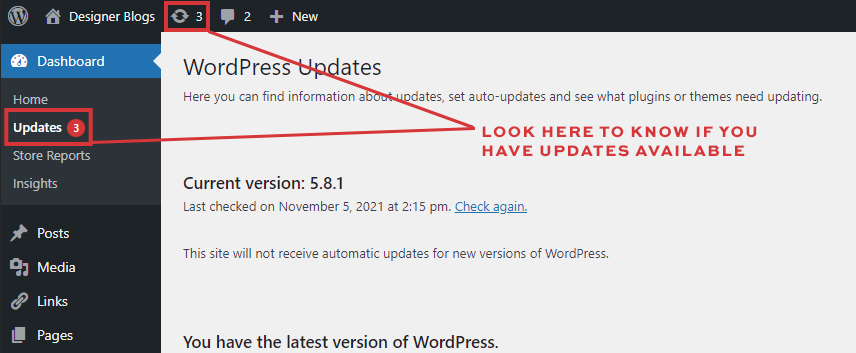
WordPress makes it easy to stay current. When you’re logged into your dashboard, look for the circular arrows icon in the top menu bar or the Updates tab in the sidebar. Both will show a notification bubble with the number of pending updates.
Clicking either link takes you to the WordPress Updates page, where you can update everything in one place. You can also see specific notifications within your Plugins tab next to any tool that requires an update.
How to Update WordPress
Before attempting any updates, remember to backup your database. It’s also wise to plan to do your updates at a time when your traffic is at its lowest because your site may appear in maintenance mode for a few seconds during the updates.
When you are ready, visit your “WordPress Updates” page to perform your updates.
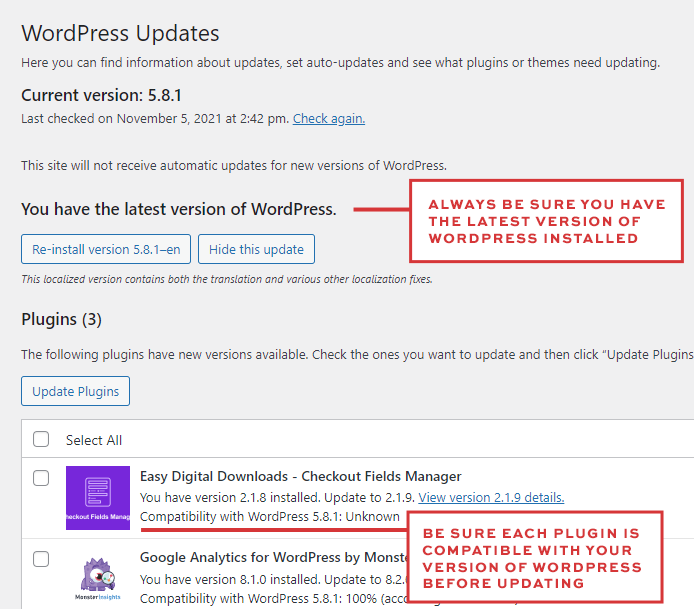
Once here, just click on any items listed here and click the update button.
WordPress Version
Check your WordPress core first. Most sites now use an auto-update system for minor releases, but if a manual update is available, click the update button to ensure you have the latest security patches.
Plugins
You can update all plugins at once, but I recommend updating them individually. Check your site between each update; if a glitch occurs, you’ll know exactly which plugin caused it. Always verify that the plugin is compatible with your current WordPress version before clicking “Update.”
Themes
Perform updates for the Genesis Framework and even inactive themes. If you are using one of our designs, updating the Genesis Framework is safe and will not disrupt your site’s layout.
Want us to handle your updates and maintenance for you?
Discover our Worry-Free Website Care service.
Are there any other questions you have about WordPress updates that weren’t covered in this post? If so, please share them as a comment and we’ll do our best to answer them. We can also help you with the updates. Contact us to get more information about that.
Happy updating!